How to change your DirectAdmin password from the Clientzone
This article will help you change your DirectAdmin password from your clientzone.
You will need to first login to your Clientzone from https://clientzone.nivacity.com then follow these steps
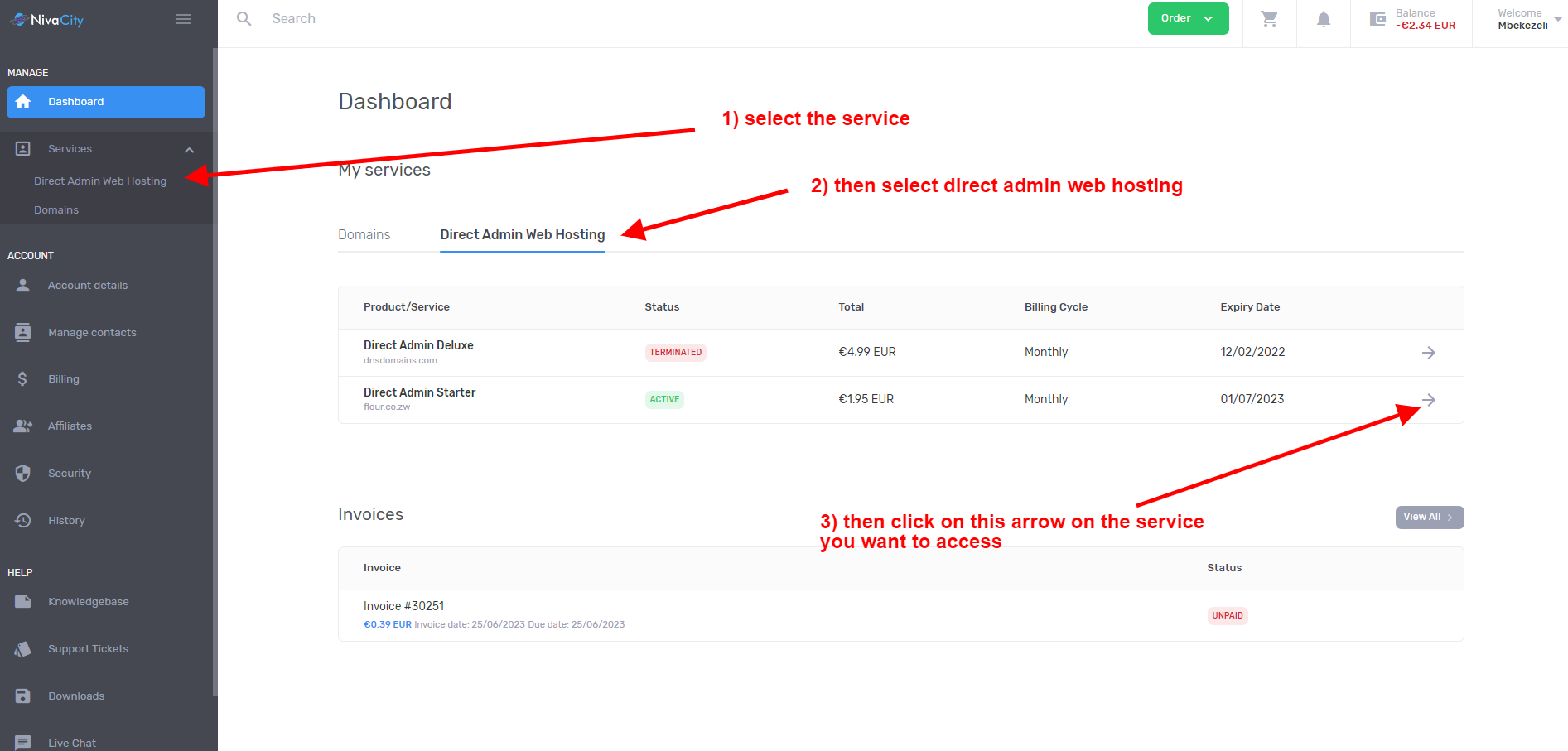
- Select Services then click on DirectAdmin web hosting as per the image below
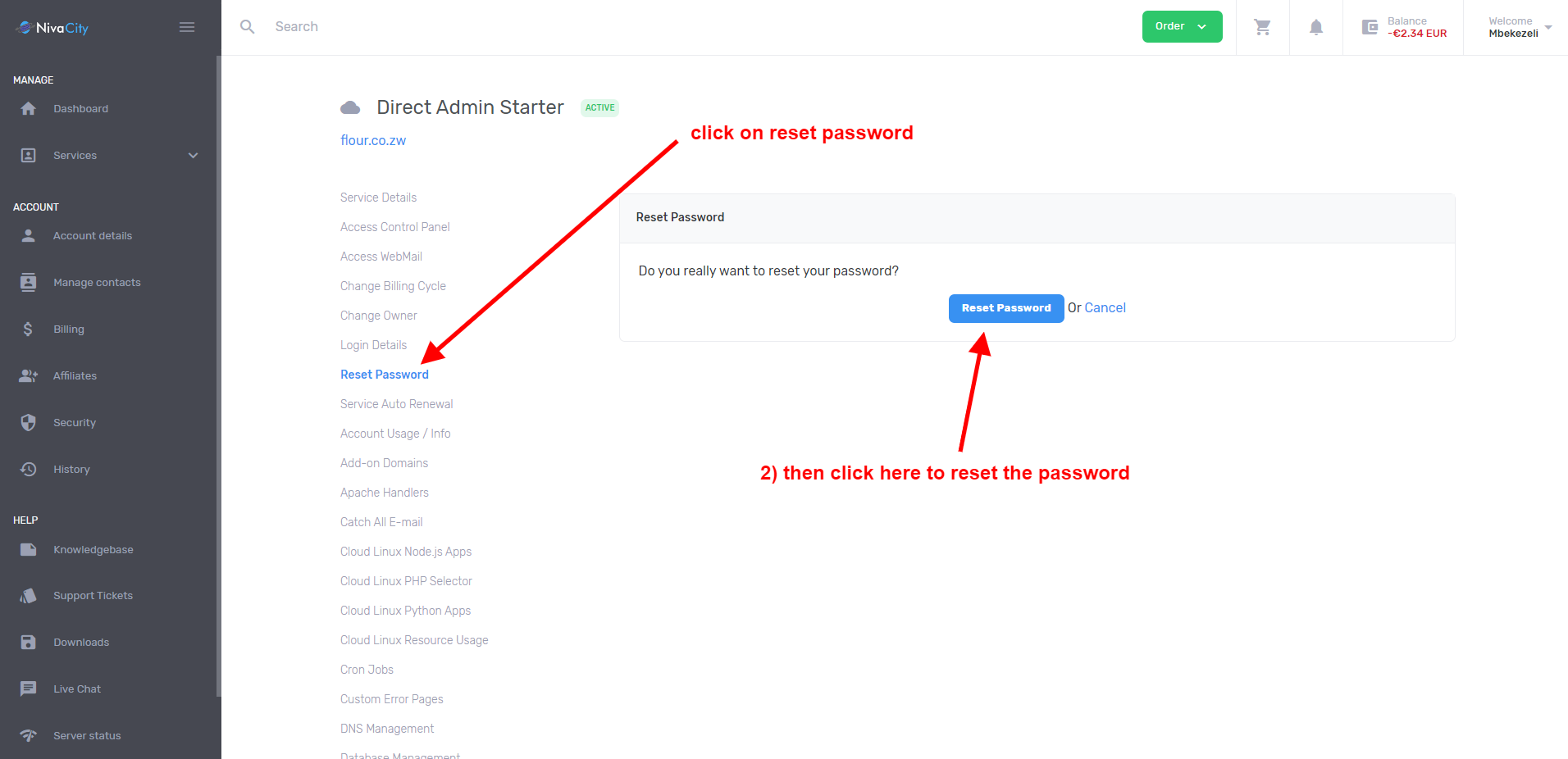
- Once you have selected the service you need and clicked on the arrow to acces the service, navigate down to “reset password” then click on the reset password button as per the image below.
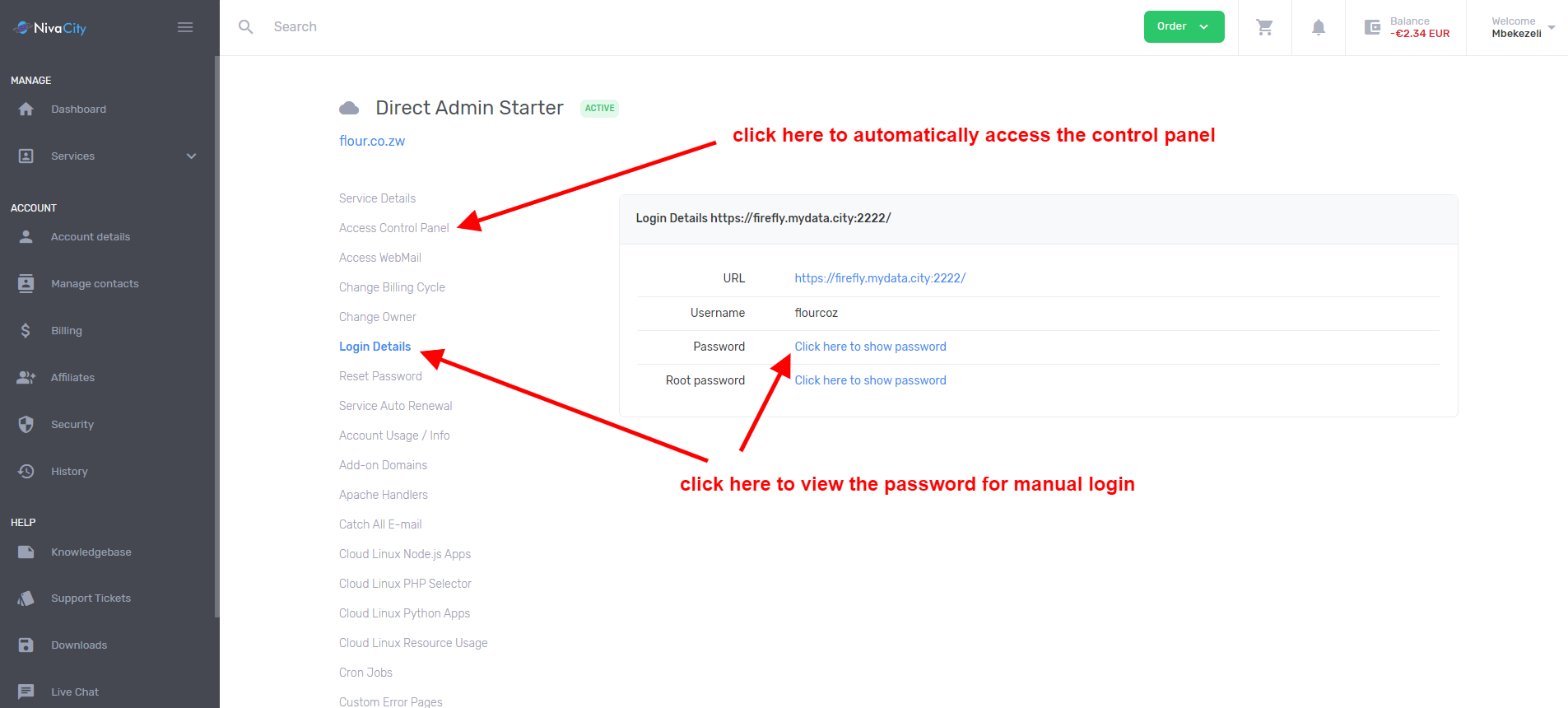
- Once you have reset your password you can either click on “login details”to view the password or äccess control panel“to automatically log into the DirectAdmin control panel as per the image below
If you are still having trouble accessing your control panel after following the above steps please open a support ticket so our techs can assist you.